
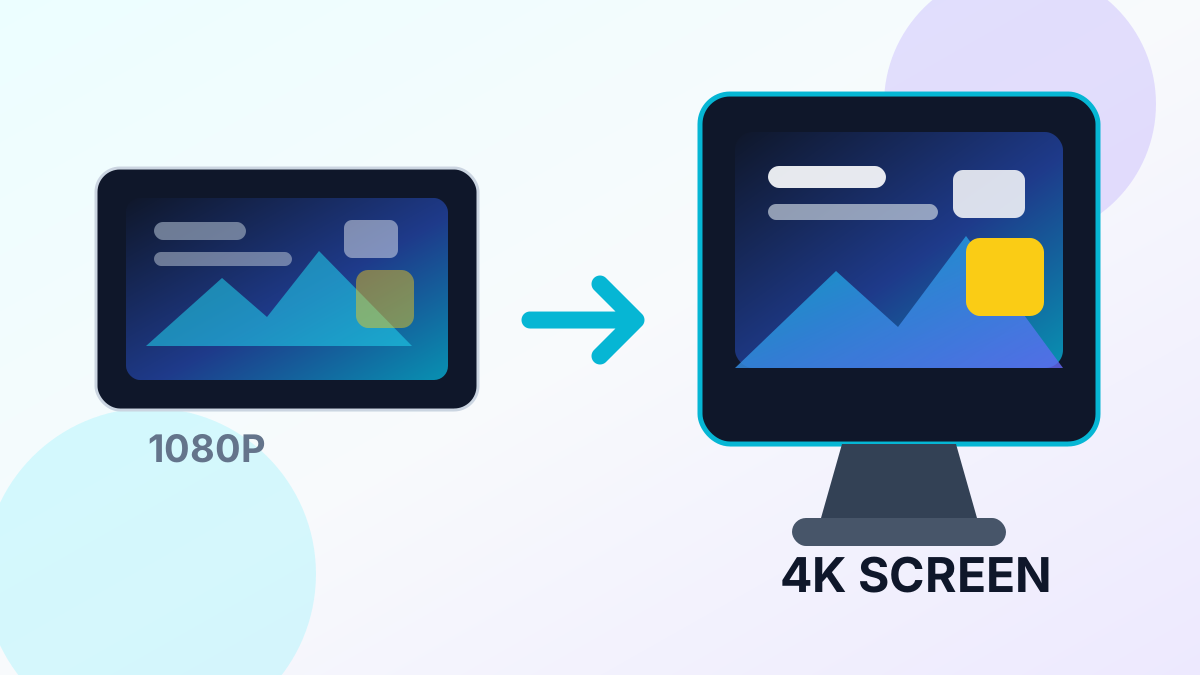
Screenshots are inherently limited to your display resolution. If you are on a 1080p monitor, every screenshot is 1920×1080 — but AI upscaling can take those to 3840×2160 (4K) or even higher.
Why Upscale Screenshots?
- Gaming: Create 4K wallpapers from your favorite game moments, even on a 1080p GPU
- Content creation: Higher resolution thumbnails and social media posts
- Documentation: Clearer UI screenshots for tutorials, help docs, and presentations
- Archival: Preserve old screenshots at higher quality for future displays
How to Upscale Screenshots
- Capture your screenshot using your OS tool (Win+Shift+S on Windows, Cmd+Shift+4 on Mac) or in-game screenshot feature
- Save as PNG — this is critical. JPEG screenshots lose detail at compression boundaries, and upscaling amplifies those artifacts
- Upload to UpscaleFast and select 2x (1080p to 4K) or 4x (720p to near-4K)
- Download your upscaled screenshot
Best Settings by Screenshot Type
### Game Screenshots 2x from 1080p gives clean 4K results. The AI enhances texture detail, sharpens edges, and smooths aliasing artifacts. Works especially well for games with stylized or cel-shaded graphics.
### App/UI Screenshots 2x is usually ideal. UI elements (text, icons, borders) upscale cleanly since they have sharp edges. Save as PNG to preserve text sharpness.
### Anime/Video Screenshots If upscaling anime screenshots, try the Anime Upscaler which is optimized for flat colors and line art. For live-action video stills, the standard Real-ESRGAN upscaler at 2x works best.
### Old Game Screenshots For retro games at very low resolutions (320×240, 640×480), use 4x upscaling. The AI handles pixel art and low-poly 3D remarkably well, adding detail that looks natural.
Tips for Best Results
- Disable UI overlays before capturing game screenshots for cleaner wallpapers
- Use the highest in-game resolution your GPU supports, even if your monitor is lower
- PNG format only — JPEG screenshots with text or UI elements will show compression blocks after upscaling
- Crop before upscaling if you only need part of the screen — this saves processing time and focuses the AI on the area that matters
Upscale your screenshots free with UpscaleFast — works on game captures, app screenshots, and any screen content. No signup required.