
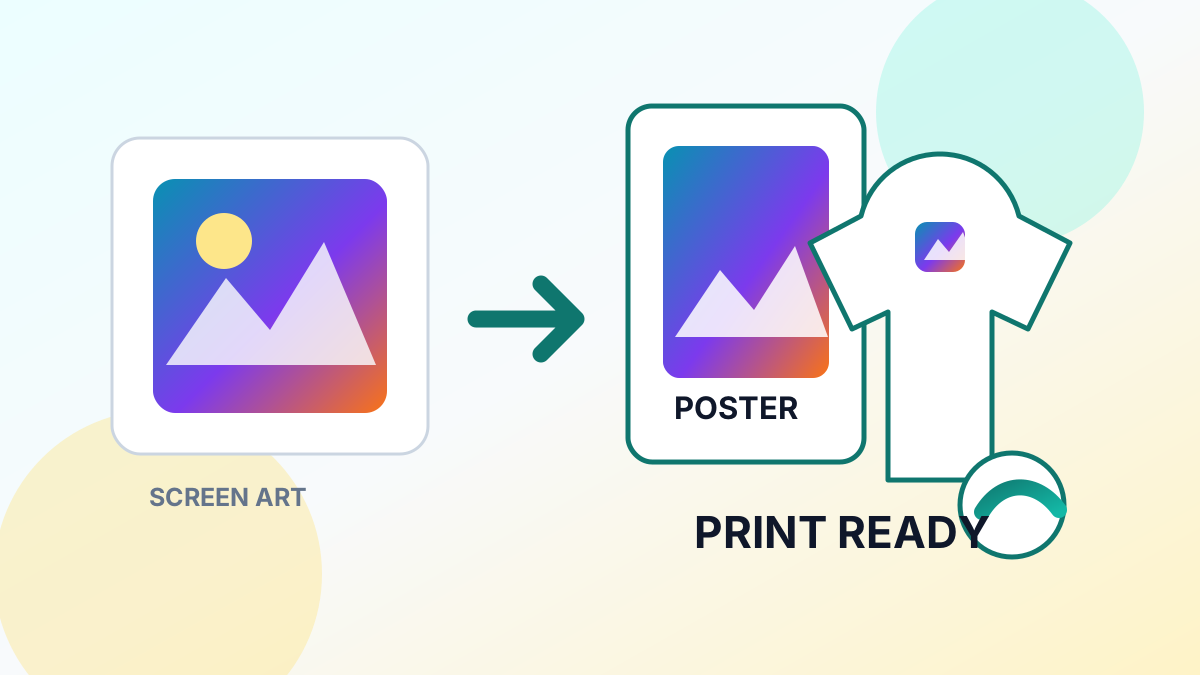
Redbubble products look best with large, high-resolution source files. A sticker design that looks great at 500×500 pixels on screen will print blurry on a t-shirt or poster. AI upscaling bridges the gap between screen-resolution art and print-ready files.
Redbubble Resolution Requirements
Different products need different minimum resolutions:
- Stickers: 2400×3200px recommended
- T-shirts: 4500×5400px for full coverage
- Posters: 6750×9000px for large format
- Phone cases: 1300×2000px minimum
- Art prints: 7200×10200px for A3 size
If your original artwork is 1000×1000px, you need at least 4x upscaling for most products.
Step-by-Step Guide
- Export your art at the largest size your design tool supports (Procreate, Photoshop, Clip Studio)
- Save as PNG — never JPEG for artwork. JPEG compression creates artifacts around line art
- Upload to UpscaleFast and select 4x upscaling
- Check the result — zoom in on edges, gradients, and fine details
- Upload to Redbubble at the upscaled resolution
For anime or illustration style art, the Anime Upscaler handles flat colors and clean lines better than general upscaling. All upscaling is powered by Real-ESRGAN, the leading AI super-resolution model.
Tips for Best Print Quality
- Work in 300 DPI from the start if possible — but if your source is 72 DPI screen art, upscaling can still get you to print-ready 300 DPI
- Transparent backgrounds work on Redbubble. Use Background Eraser if your art has a solid background you want removed
- Test with stickers first — they are the cheapest product to order a sample
- Avoid over-sharpening before upscaling. Let the AI handle enhancement
Pixel Art on Redbubble
For pixel art, upscale using nearest-neighbor scaling in your image editor first (to maintain crisp pixels), then apply a light AI upscale at 2x for subtle smoothing if desired. Pure pixel art at small sizes can also work well — Redbubble handles small repeating patterns on some products.
Get your art print-ready with UpscaleFast — free, fast, and no watermarks.